
Clipchamp is an online video editor owned by Microsoft. It replaces previous Microsoft editing applications, including Windows MovieMaker and Windows Video Editor.

Accessing Clipchamp
- Open Microsoft Edge. (While Clipchamp does work in Chrome on a PC, you may run into issues, particularly the first time you try to log into the program. Use Chrome if using a Mac)
- Go to https://www.office.com/
- Click the Sign in button.
- Enter your Gettysburg Email address and click the Next button.
- If prompted, choose the Work or school account option.
- Enter your Gettysburg password and click the Sign in button.
- Upon logging into Microsoft 365 online, you may or may not see a list of commonly used apps. If you don’t see the application you need, either:
- click the Apps button or icon on the side menu bar

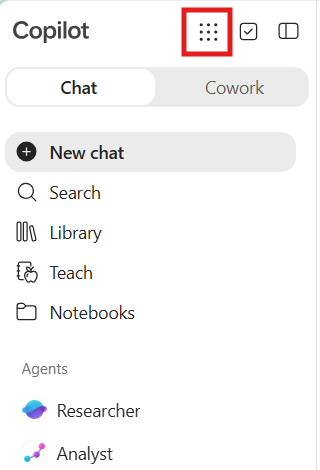
- or click the App Launcher (checkboard icon) in the upper left corner of the window to reveal a list of available applications.
- click the Apps button or icon on the side menu bar

- Choose the More Apps option to see a list of Microsoft application.
- Choose Clipchamp.
Creating a New Clipchamp Project
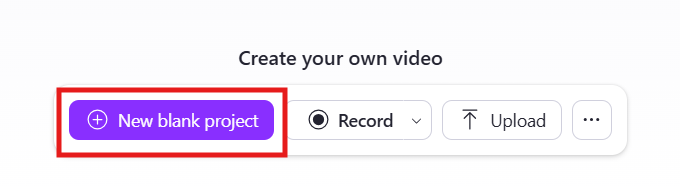
- Click the New blank project button.
- Enter a distinct name for your project by clicking in the Video Project title area in the upper right corner of the screen.

- Clipchamp creates a project file on your OneDrive account in the following location: My files >Videos > Clipchamp > Project Name . Copies of imported project assets (including video, audio, and images) are saved in the Assets folder inside of the Project Name folder.
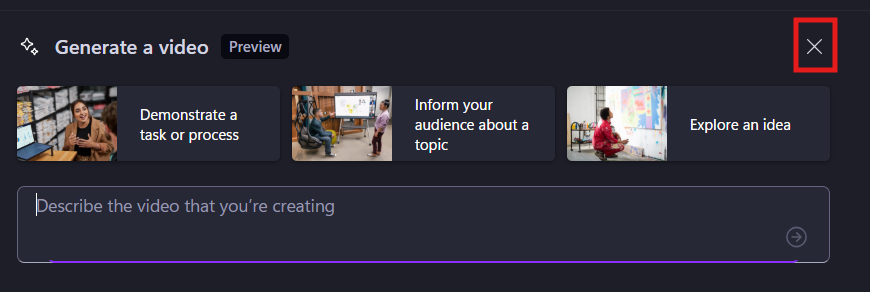
- To reveal the timeline, close the Generate a Video pane located below the preview monitor.
- Click the My media button on the side menu to open the media pane.
- Click the Import Media button to select and upload videos to your video project.
- An upload message appears as the video copies are uploading. While you can start editing before this process is complete, make sure the upload process is complete before closing the Clipchamp app, otherwise your video backup files will not be saved to your OneDrive account.
- Editing video is as simple as dragging the video to the timeline.
- For specific instructions on editing in Clipchamp, click the Help question mark (?) in the upper right corner of the screen.

Saving a Clipchamp Project as a Video File
Before you can upload your Clipchamp project to YouTube, Panopto, or another website, you must export the project as a self-contained movie file (usually a MP4 file). Clipchamp project files will work only inside of Clipchamp. A project file is not a video file.
- To save the project as an MP4 file, click the Export button.

- Enter a File Name and click the Export button.

- Clipchamp creates the MP4 video file and saves it to your OneDrive location: My files > Videos > Clipchamp > Project Name > Exports

