
You can upload video to YuJa either from within Moodle or from the YuJa platform itself.
Uploading Video Using the Moodle Rich-Text Editor
The Rich-Text Editor appears in various Moodle activities and resources, including Forums, Assignments, Pages and the Text and Media Area. The YuJa Media Chooser Button is available anywhere the Rich-Text Editor appears and allows users to select videos or record new videos into the YuJa Media Library without leaving the Moodle interface.
- If necessary, turn editing on for the Moodle course, using the Edit Mode toggle.
- Click the Add content (+) button and choose the Activity or resource option.
- Choose an activity or resource that includes the Rich-Text Editor, such as the Page resource.
- Enter a Name for the activity or resource.
- In the Page content section, click the Reveal or hide additional buttons (three dots) button to reveal another row of buttons.
- Click the YuJa Media Chooser button.
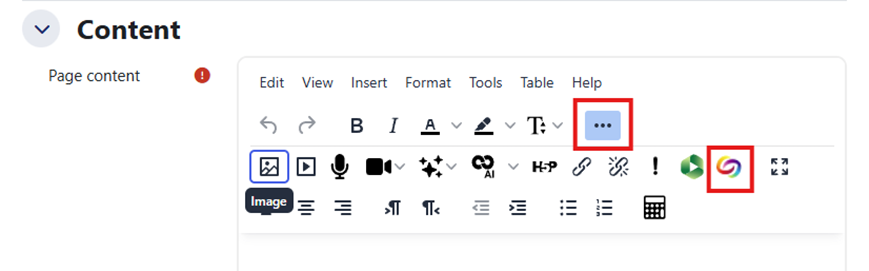
- The YuJa Media Chooser Window opens. Select the Upload Media tab.
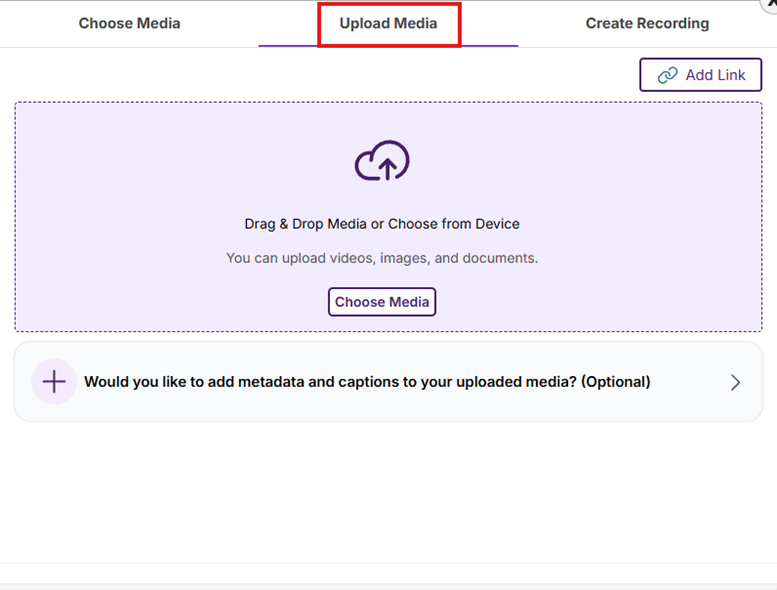
- Either drag a video file into the YuJa Media Chooser window or click the Choose Media button to locate and select a video file on your computer. You can add multiple files using this window.
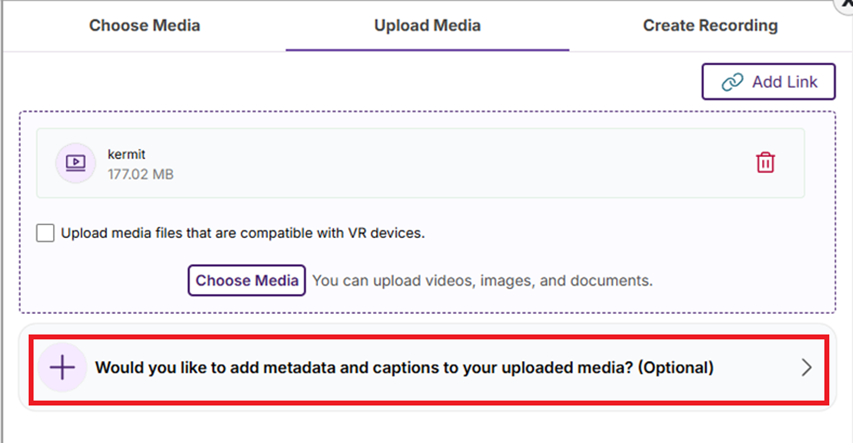
- The video titles will appear in the YuJa Media Chooser window.
- If your video needs to be captioned in a language other than English, click the add metadata and captions box. (If your video has audio in English, skip to step 13.)
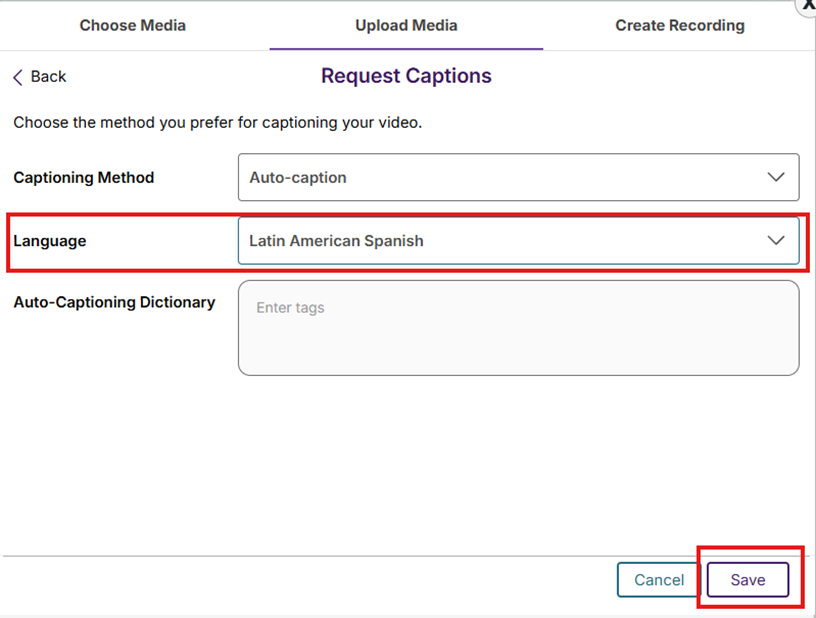
- Click the Captions button.
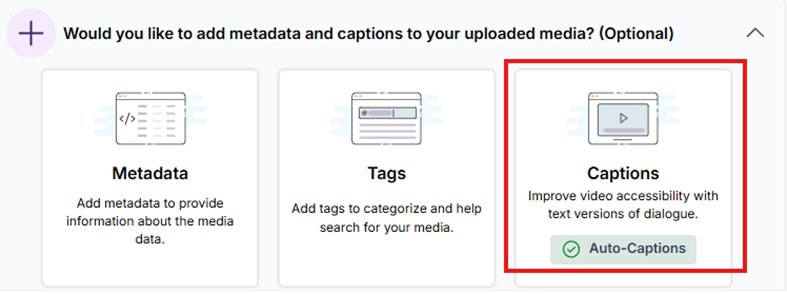
- Select the video’s language from the Language drop-down menu and click the Save button.
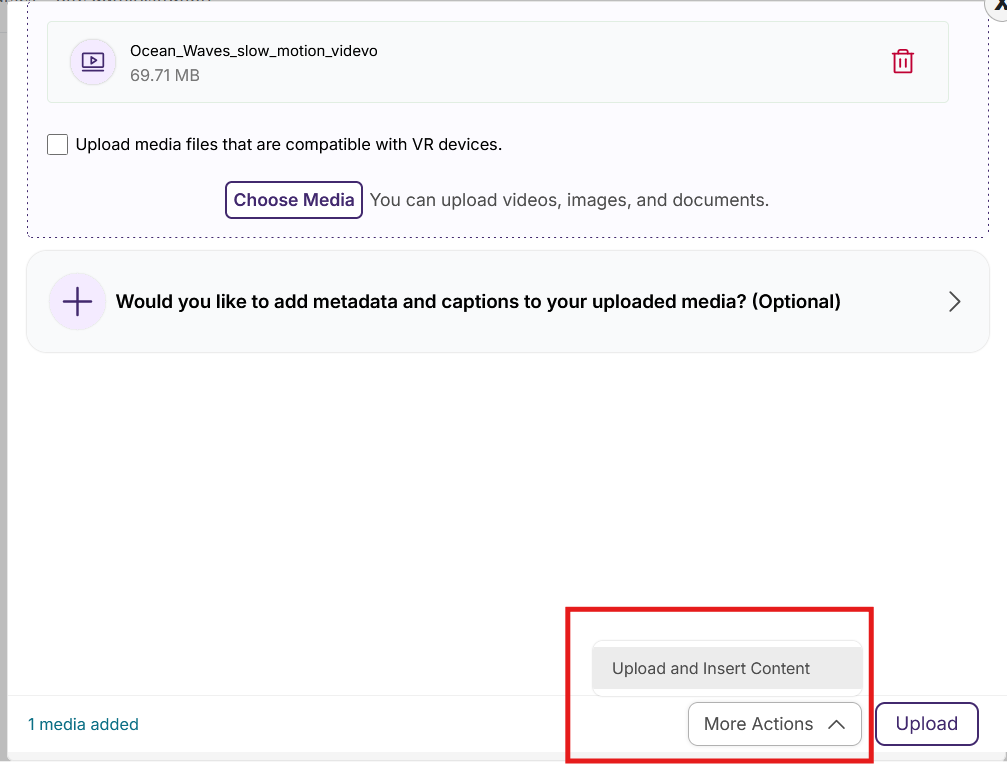
- Scroll down and click the More Actions button and select the or Upload and Insert Content option.
- A progress bar will appear as the video uploads to your YuJa Media Library. When completed, the YuJua Media Chooser window will close.
- The video will load into the Page Content area of Moodle. You will not see a video picture until the video has finished processing on the YuJa server. (You do not need to wait for the video to process to save the Moodle page.)
- Click the Save and return to course button. (You will not be able to play the video in Moodle until the video has finished processing on the YuJa server.)
Uploading Video in YuJa
- Log into YuJa using your Gettysburg Credentials.
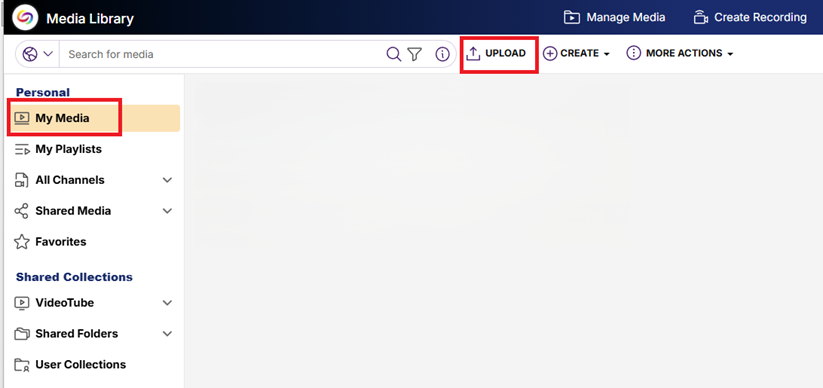
- By default, YuJa opens to a user’s My Media location, where most people will store their video files.
- Click the UPLOAD button.
- Select the type of media you wish to upload (Video, Audio, VR, etc.) from the tabs at the top of the Add Media Window.
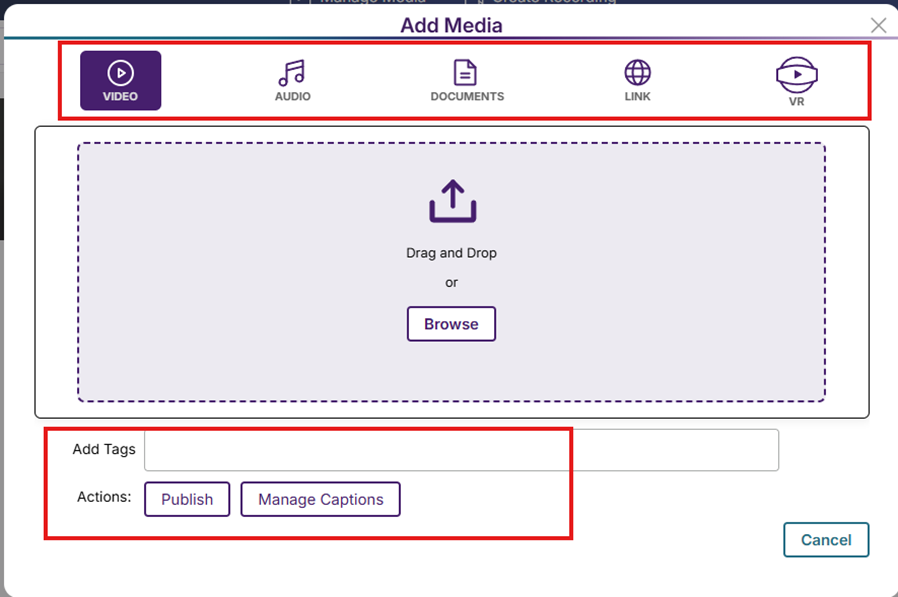
- Before adding the video to the window, set the following settings, if necessary. The video will begin uploading immediately after you add it to this window, so set the settings before adding the video. (You can also change these settings once the video has been uploaded to YuJa by clicking the More menu on the video thumbnail.)
- If your video contains a language other than English, click the Manage Captions button and select the correct language from the drop-down menu.
- If you wish you can Add Tags to help you search for the video in your library.
- If you wish to publish the video to a channel inside of YuJa, click the Publish button and select the appropriate channel.
- Drag a file into the Upload window. The file will upload to your My Media library. You will receive a “Finished Uploading” message when the upload is complete.
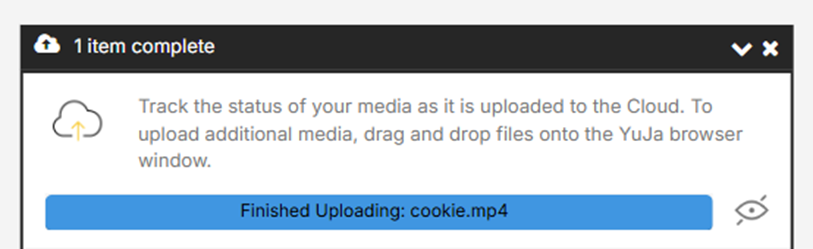
- You will not see a video thumbnail picture until the video has finished processing on the YuJa server. (You do not need to wait for the video to process before leaving YuJa.)
- You can add a description for the video and change the title by hovering over the video’s thumbnail and selecting More.
