
Unlike some video streaming services (such as Panopto), YuJa does not have a separate student submission activity for videos in Moodle. Students can upload or record videos into YuJa and embed them directly into Moodle’s Assignment activity using the YuJa Meida Chooser button in Moodle’s rich-text editor. Once added to the Moodle Assignment, the videos can be viewed and graded by a professor similar to uploaded papers. The main difference between using the Moodle Assignment to collect papers vs. video is that a professor must set the Moodle Assignment to accept “Online Text Submissions” rather than “File Submissions.”
Setting up the Video Assignment in Moodle
- Open the Moodle course and turn editing on by sliding the Edit Mode toggle to the on position.
- Move to the section of the course where you wish the assignment to appear and click the Add Content button (+) and choose the Activity or resource option.
- From either the All or Assessment categories, select Assignment.
- Name the Assignment.
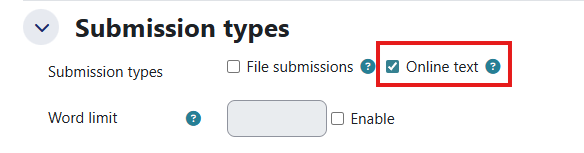
- Under the Submission types section of the assignment:
- uncheck the File submission box (You don’t want students trying to upload video files directly to Moodle, as they are often too large.)
- check the Online text box. (This option will provide students with a text box that includes Moodle’s rich-text editor and the YuJa Media Chooser button for upload or recording.)
- In the Activity Instructions box, add instructions explaining how to upload student videos by clicking the YuJa Media Chooser button in the assignment. For your convenience, you can also provide a link to an Knowledge Base article with student instructions, entitled the Student Guide to Moodle: Uploading a YuJa Video Assignment.
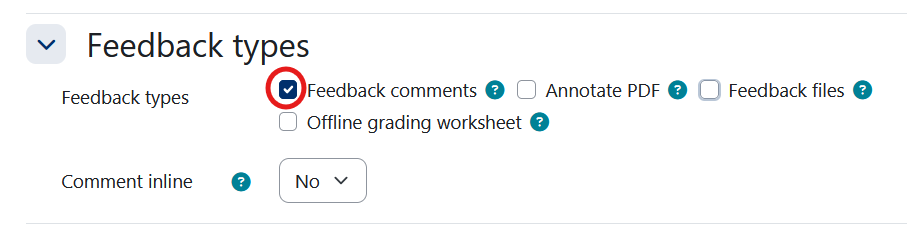
- Under the Feedback types section, select Feedback comments. You do not need to check Annotate PDF.
- Set the Availability, Grade, and other Assignment settings just as you would for non-video Assignments. (For more information about the specific Assignment settings see the “Creating Assignments in Moodle” article.)
Student View of a Video Assignment in Moodle
- Click the Moodle Assignment in a course to open it.
- Click the Add submission button.
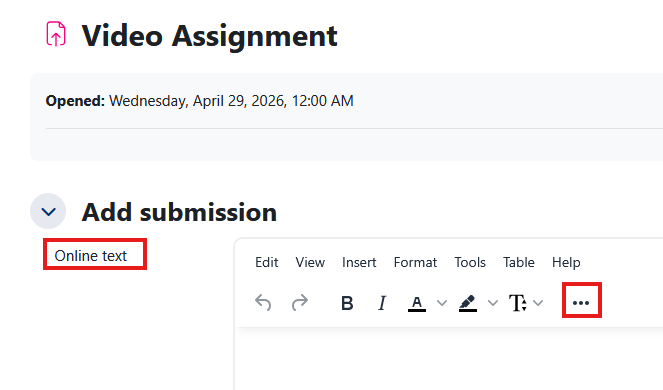
- In the Add Submission box, click the three dot button to reveal additional toolbar items.
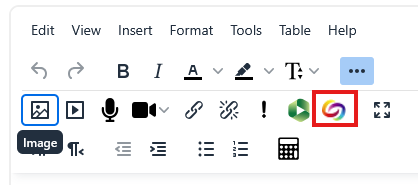
- Click the YuJa Media Chooser button.
- The YuJa Media Chooser Window opens. Select the Upload Media tab. (Students can also record video files directly to YuJa, using the Create Recording tab.)
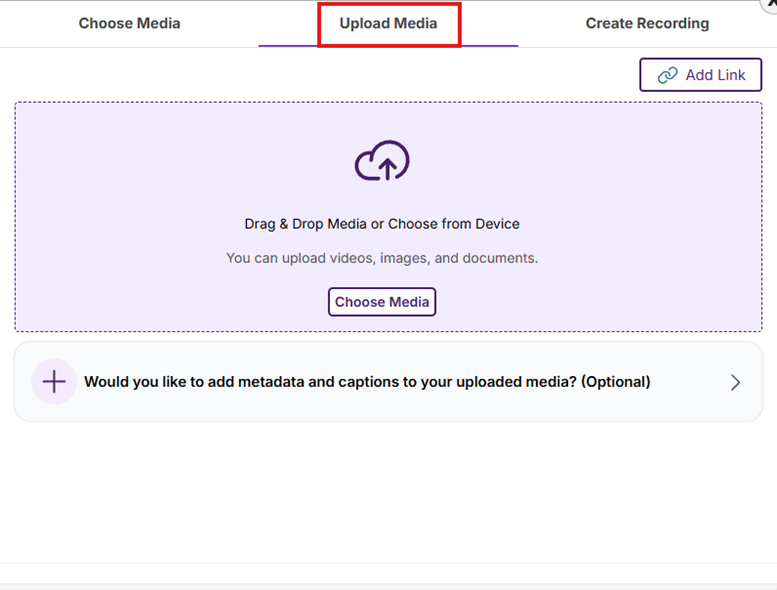
- Either drag a video file into the YuJa Media Chooser window or click the Choose Media button to locate and select a video file on your computer. You can add multiple files using this window.
- The video titles will appear in the YuJa Media Chooser window.
- Scroll to the bottom of the window and click the More Actions button and select Upload and Insert.
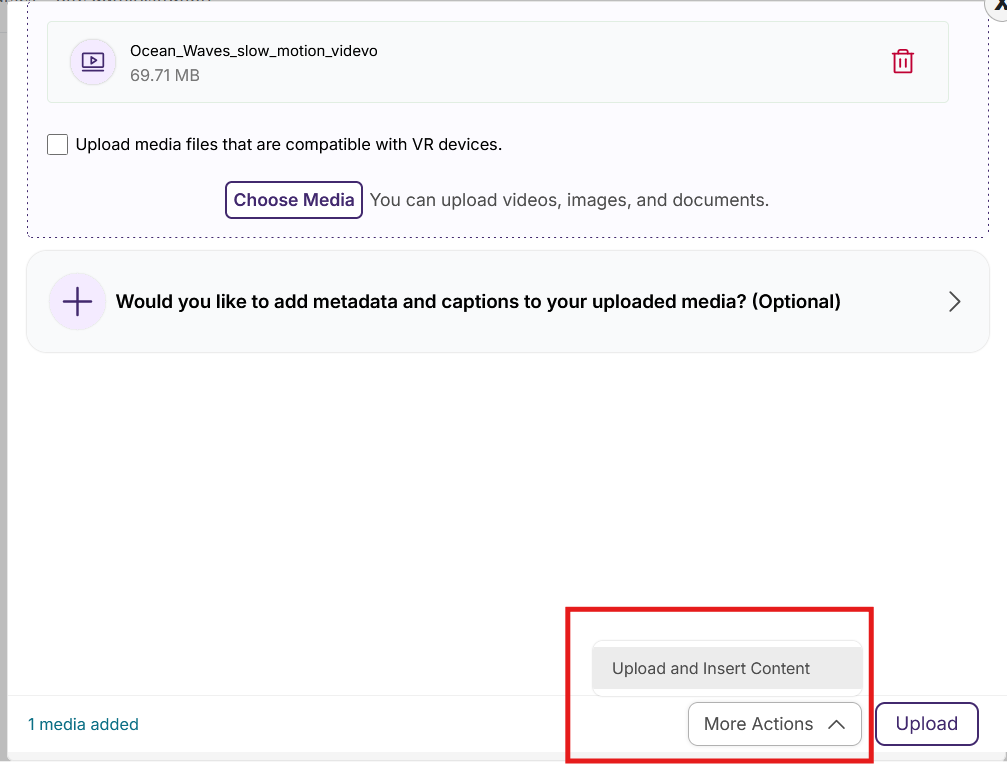
- A progress bar will appear as the video uploads to your YuJa Media Library. When completed, the YuJa Media Chooser window will close.
- A link to the video (now uploaded and processing on the YuJa video server) will appear in the Page Content area of Moodle. (You do not need to wait for the video to process to save the Moodle page.)
- Click the Save changes button. (You will not be able to play the video in Moodle until the video has finished processing on the YuJa server.)
