
How to Create a Personal Email Account
Microsoft
Microsoft themselves has a guide that is very straight forward which you can find here: How to create a Microsoft Outlook email account – Microsoft 365
Gmail
Google themselves has a guide that is very straight forward which you can find here: Create a Gmail account – Gmail Help
How to Setup Autoreply
Similar to above, Microsoft also has a guide on this was well which you can find here: How to set up out of office automatic replies in Outlook – Microsoft Support
Fill out a Kuali Form Informing Gettysburg of your Personal Account
Changing Contact Information Checklist
This may contain and is not limited to
- Banking, investment, or financial accounts
- Insurance accounts
- Online shopping accounts (Amazon, eBay, etc.)
- Social media accounts (LinkedIn, Facebook, etc.)
- Professional organization memberships
- Personal contacts who only have your work email
- Group chats or mailing lists
- Alumni or volunteer organizations
- Multi-Factor Authentication (MFA) that may be linked
How to Forward an Email from Outlook
- Head to https://outlook.office.com/mail/
- Click on the email you wish to Forward to your new email address
- Click on the “Forward” button
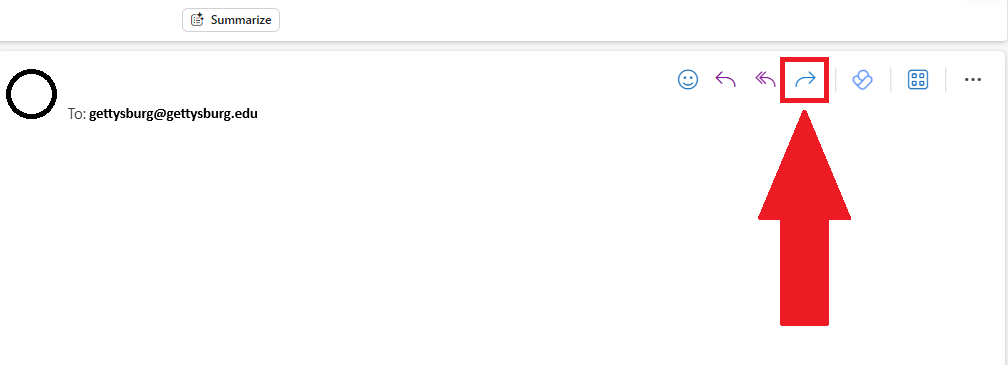
- After that in the To: field, type your personal email address and send!
How to Export Your Contacts
- Go to People (the contacts icon in the left nav)
- Click the Manage dropdown at the top
- Select Export contacts Choose either All contacts or a specific folder
- Click Export — it downloads as a
.csvfile automatically
How to Import Your Contacts
Microsoft
- Go to https://outlook.office.com/mail/ and Sign In
- Go to People (the contacts icon in the left nav)
- Click the Manage dropdown at the top
- Select Import contacts Choose either All contacts or a specific folder
- Click Import — then find and select the
.csvfile that was previously downloaded
- Go to https://contacts.google.com
- Click Import in the left sidebar
- Click Select file — then find and select the
.csvfile that was previously downloaded - Click Import
How to Export your Calendar
Export Office 365 Calendar as an ICS File
- Use your Office 365 credentials and log in to your Outlook account.
- Go to the Calendar icon in the left sidebar.
- Click on the calendar you want to export.
- Hit the Settings (⚙️) icon in the top right corner.
- Select View all Outlook settings > Calendar > Shared Calendars.
- Under Publish a calendar, choose your calendar, and set permissions to Can View All Details.
- Click Publish and copy the ICS link (the one ending in .ics).
- Paste the ICS link into a new browser tab and press Enter. This will download the calendar file (.ics) to your computer.
How to Import your Calendar
Apple (Mac Specifically)
Please refer to Apple’s official Support Guides here: Import or export calendars on Mac – Apple Support (SG)
Google Calendar
Please refer to Googles’s official Support Guide here: Import events to Google Calendar – Computer – Google Calendar Help
Microsoft / Outlook
Please refer to Microsoft’s official Support Guides here: Import or subscribe to a calendar in Outlook.com or Outlook on the web – Microsoft Support
How to Login to a Personal Email on Your Device
Apple / iPhone / iPad
Please refer to Apple’s official Support Guides here:
iPhone / iPad: Add an email account to your iPhone or iPad – Apple Support
Mac: Add and manage email accounts in Mail on Mac – Apple Support
Google / Android
Please refer to Googles’s official Support Guide here: Add another email account in the Gmail app – Android – Gmail Help
Microsoft / Outlook
Please refer to Googles’s official Support Guide here: Quick start: Add an email account to Outlook – Microsoft Support
