
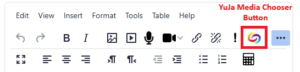
Students can upload video files to the YuJa streaming server from inside of a Moodle Assignment by using the YuJa Media Chooser button located on the Moodle Rich Toolbar.
Instructions: Uploading a Video to a YuJa Assignment
- Click the Moodle Assignment in a course to open it.
- Click the Add submission button.
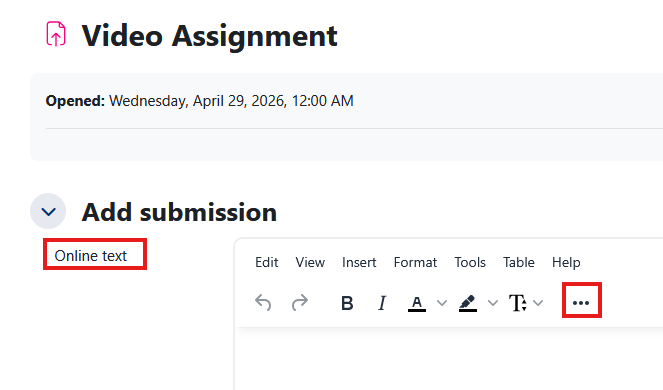
- In the Add Submission box, click the three dot button to reveal additional toolbar items.
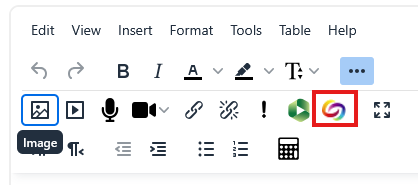
- Click the YuJa Media Chooser button.
- The YuJa Media Chooser Window opens. Select the Upload Media tab. (Students can also record video files directly to YuJa, using the Create Recording tab.)
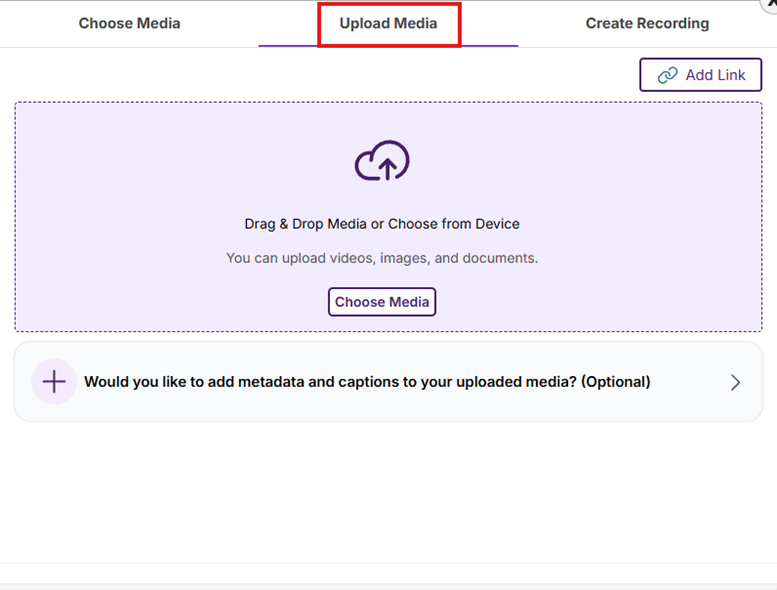
- Either drag a video file into the YuJa Media Chooser window or click the Choose Media button to locate and select a video file on your computer. You can add multiple files using this window.
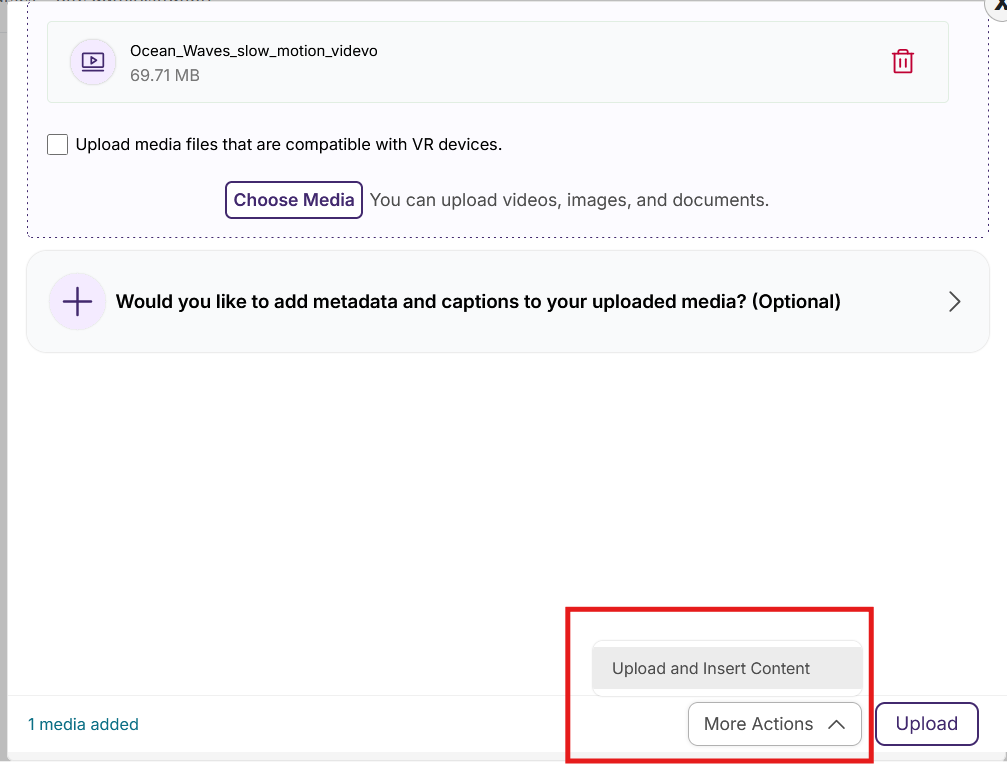
- The video titles will appear in the YuJa Media Chooser window.
- Scroll to the bottom of the window and click the More Actions button and select Upload and Insert.
- A progress bar will appear as the video uploads to your YuJa Media Library. When completed, the YuJa Media Chooser window will close.
- A link to the video (now uploaded and processing on the YuJa video server) will appear in the Page Content area of Moodle. (You do not need to wait for the video to process to save the Moodle page.)
- Click the Save changes button. (You will not be able to play the video in Moodle until the video has finished processing on the YuJa server.)
