
All videos uploaded to YuJa will be auto-captioned. (See the “Uploading Video to YuJa” article for specifics about setting the language of the auto-captions prior to uploading a video.) Once YuJa has generated (auto) captions for a video, a video owner can direct the system to translate those text captions into other languages. Once generated, a viewer can select captions in other languages when watching the video.
- Log into YuJa and locate the video with captions that you wish to translate.
- Hover over the video and select the More button.
- Scroll down and select the Accessibility option in the left-side menu.
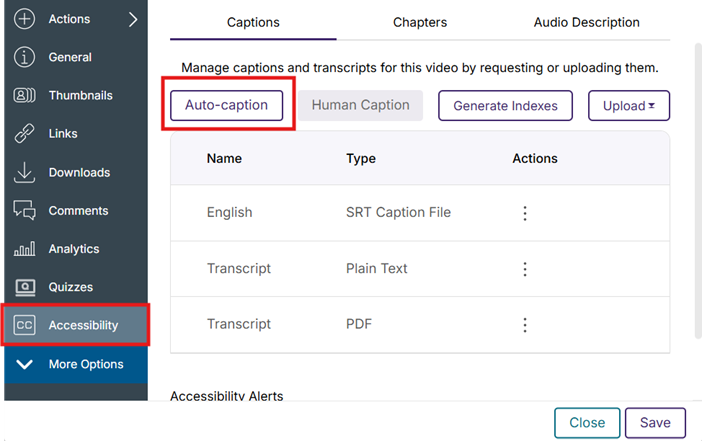
- Click the Auto-caption button.
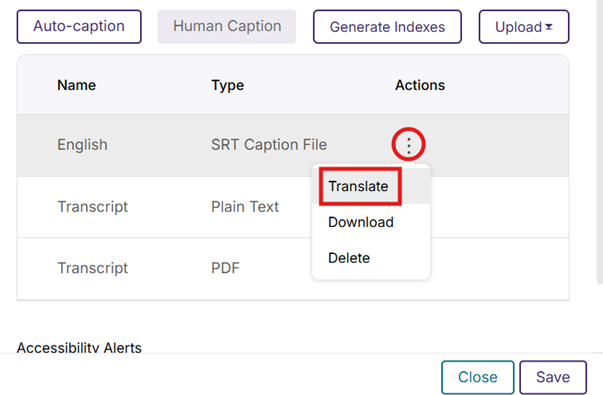
- Next the SRT Captions File, click the Actions menu (three dots) and select Translate.
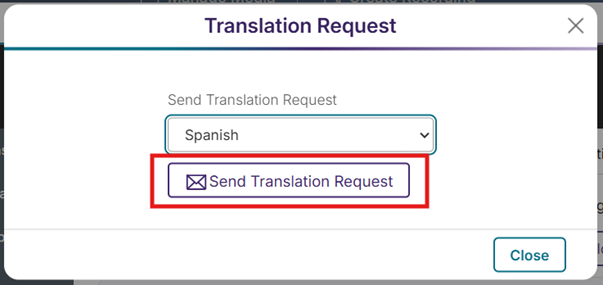
- Select a language from the drop-down menu and click the Send Translation Request button.
- You will see a “Processing” message next to the new caption language in the list.
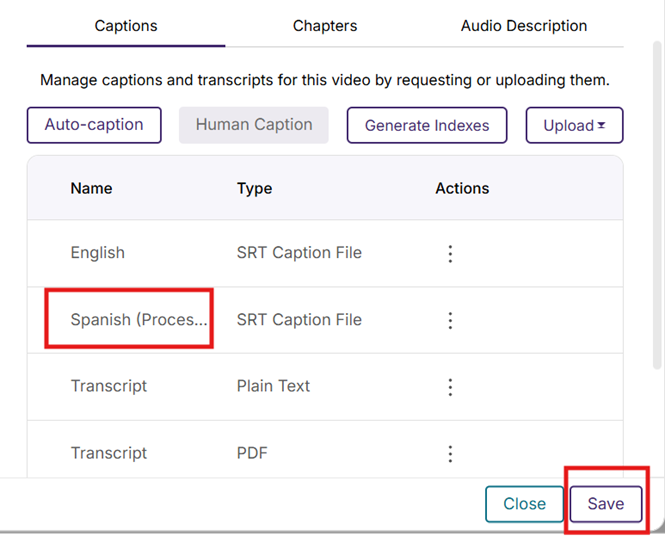
- Click the Save button.
- Click the Close button.
- Once the new captions have finished processing, a viewer should be able to select the new captions by clicking on the Captions button in the YuJa media player.
