
You can access YuJa both directly from the YuJa site and from within Moodle.
Accessing YuJa Directly via the YuJa Site
- Go to https://gettysburg.video.yuja.com
- If necessary, choose Gettysburg College Single-Sign-On rather than YuJa Credentials.
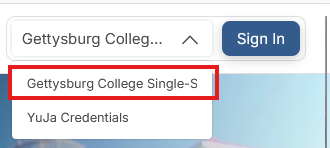
- Click the Sign In button.
- Enter your Gettysburg credentials.
- Click the Sign in button.
Accessing YuJa in Moodle via a YuJa link
- When new Moodle courses are created, YuJa will automatically add a YuJa link to the course in the first course section.
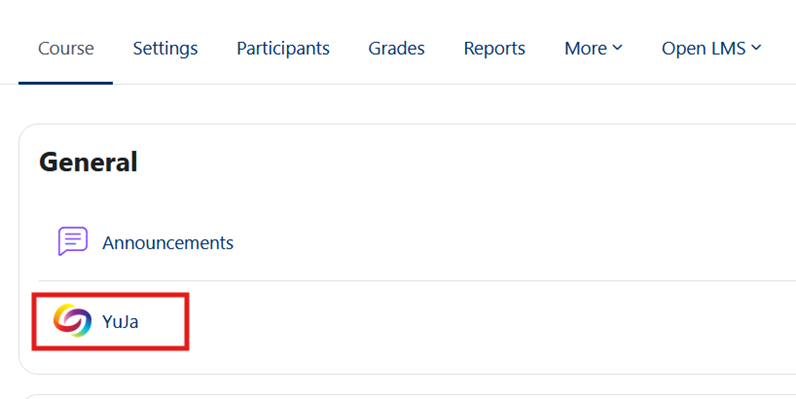
- Click the YuJa link to log into YuJa and open the YuJa application in a new browser tab. The default location in YuJa is your My Media folder.
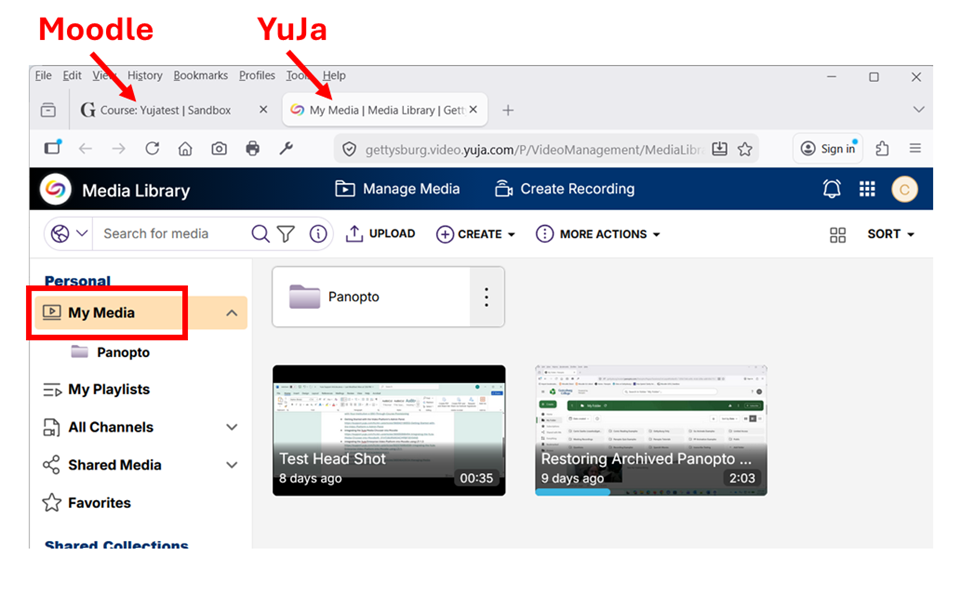
Accessing YuJa via the YuJa button in the Moodle Rich-Text Editor
The Rich-Text Editor appears in various Moodle activities and resources, including Forums, Assignments, Pages and the Text and Media Area. The YuJa Media Chooser Button is available anywhere the Rich-Text Editor appears and allows users to select videos or record new videos into the YuJa Media Library without leaving the Moodle interface.
- If necessary, turn editing on for the Moodle course, using the Edit Mode toggle.
- Click the Add content (+) button and choose the Activity or resource option.
- Choose an activity or resource that includes the Rich-Text Editor, such as the Page resource.
- Enter a Name for the activity or resource.
- In the Page content section, click the Reveal or hide additional buttons (three dots) button to reveal another row of buttons.
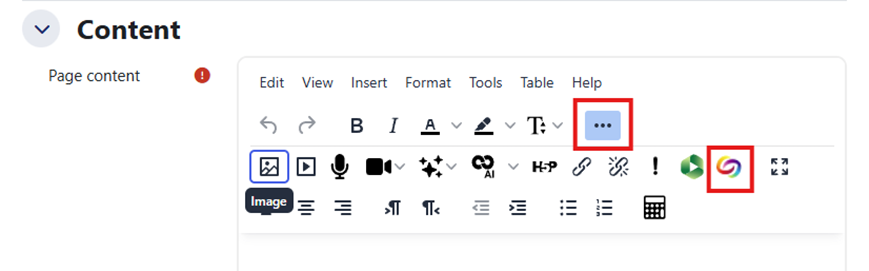
- Click the YuJa Media Chooser button.
- The YuJa Media Chooser window opens. Select the Choose Media tab to select an item already in your YuJa Media Library. (You can also choose to upload a new video via the Upload Media tab or record new video via the Create Recording tab.
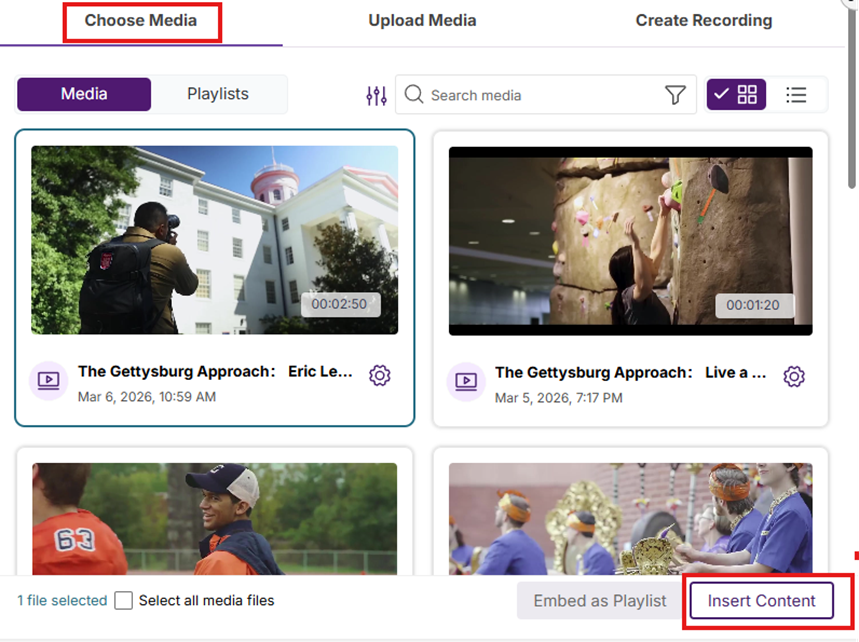
- Click the Insert Content button.
(If you don’t see the Insert Content button, try scrolling down to the bottom of the YuJa Media Chooser Window.) - Click the Save and return to course button.
Looking for a Department Shared Folder in the YuJa Media Chooser?
- If you have uploaded your videos to a Department Shared Folder, select the Choose Media tab inside of the YuJa Media Chooser window.
- Click the Sort and Filter button next to the Search Media box.
- Click the Choose Location button.
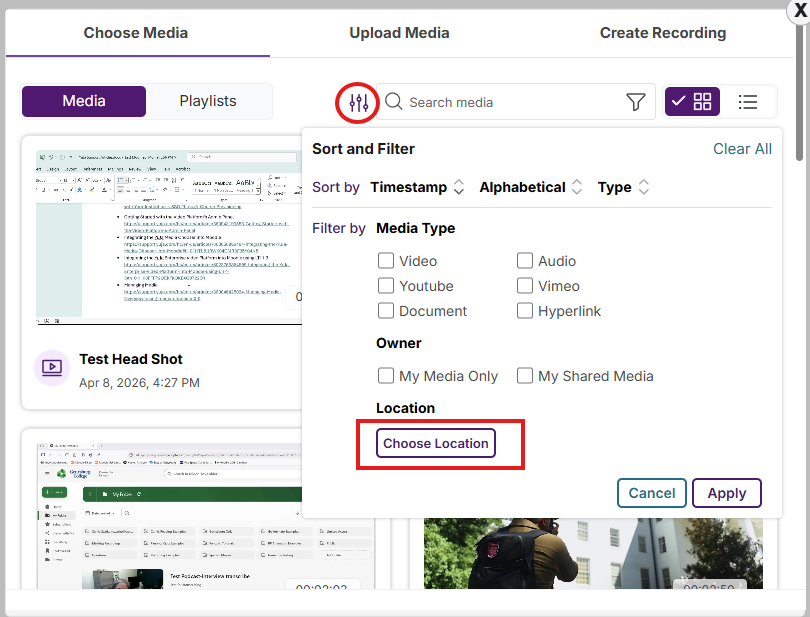
- Click the Shared Folders link to open the Shared Folders list.
- Select your Department Shared Folder.
- Click the Select button.
- Select a video from your Department Shared Folder.
- Click the Insert Content button.
- Click the Save and return to course button.
