
Join Using a Link
In some cases a meeting organizer may send you a link via an email or post the link in a Moodle course site.
- Click the Teams meeting link.
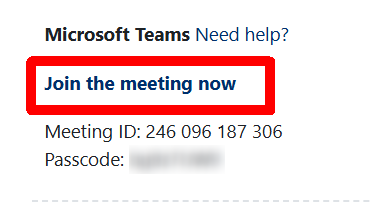
- If you have the Teams application installed on your device:
- You will be prompted to Open Microsoft Teams
- Sign into the application (if you aren’t already signed in)
- Select your audio and video settings
- Click the Join Now button.
- The meeting will open
- If you don’t have the Teams application installed and don’t want to install it, click the Continue on this Browser option.
- If prompted, allow Teams to use your microphone and video camera.
- A window allowing you to choose your audio and video settings will appear.
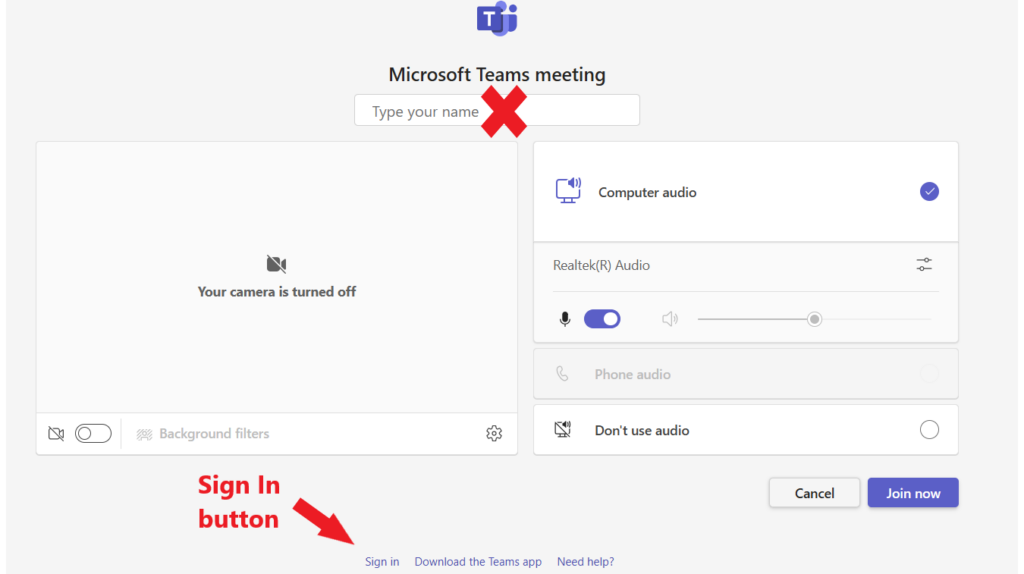
- If you see a box telling you to “Type your name,” do NOT use it if you have a Microsoft 365 account. (All members of the Gettysburg College community have Microsoft 365 accounts. Guests from outside the college may not have a Microsoft account and can just enter their name.)
- Look for the Sign In link, usually located in tiny letters somewhere on the bottom of the window. Click the Sign In link.
- Enter your email address and click the Next button.
- Enter your password.
- The meeting will open.
