
YuJa has an app, called YuJa Lumina that you can download to your mobile device, providing a convenient way to upload videos recorded with your phone or tablet.
Logging into the YuJa Lumina Mobile App
- Download the YuJa Lumina app from the apps store.
- Don’t open the app yet.
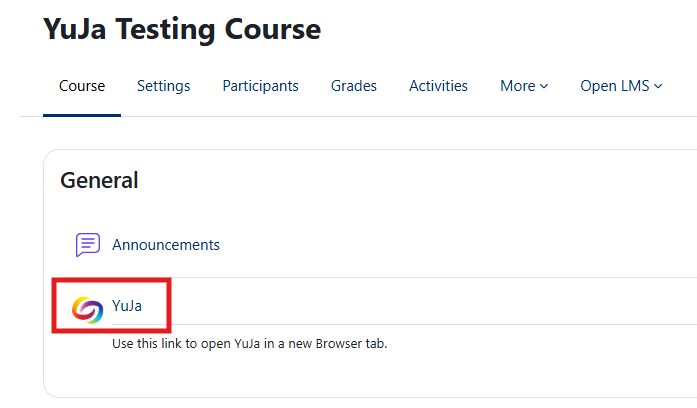
- To open the app using the same account as you use in Moodle, open Moodle in a browser on your mobile device and click the YuJa link located in the first section of your course.
- Click the View using the YuJa Mobile app option.
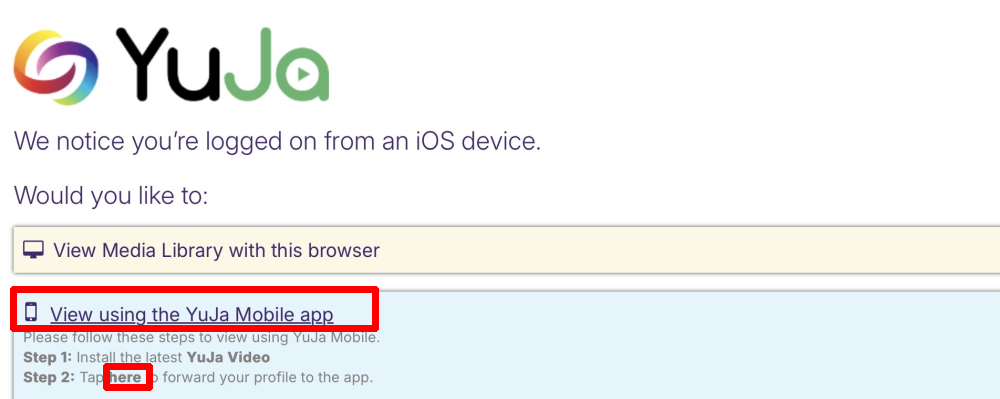
- Instructions will appear. Click on the instruction telling you to Tap here to forward your profile to the app. (Specifically, click on the word “here.”)
- When prompted to Open in YuJa Lumina, click Open.
- The YuJa Lumina app will open and sign you into your Gettysburg YuJa account.
Uploading Video to the YuJa Lumina App
- To upload videos to your YuJa Media library on your mobile device, click the + icon in the YuJa Lumina app and choose Upload.
- To place a link to the video inside of a Moodle assignment, log into Moodle on a web browser and use the YuJa Media Chooser button. The OpenLMS app does not provide direct access to YuJa from within the app.
