
Copying the Video Link in YuJa
- Log into YuJa.
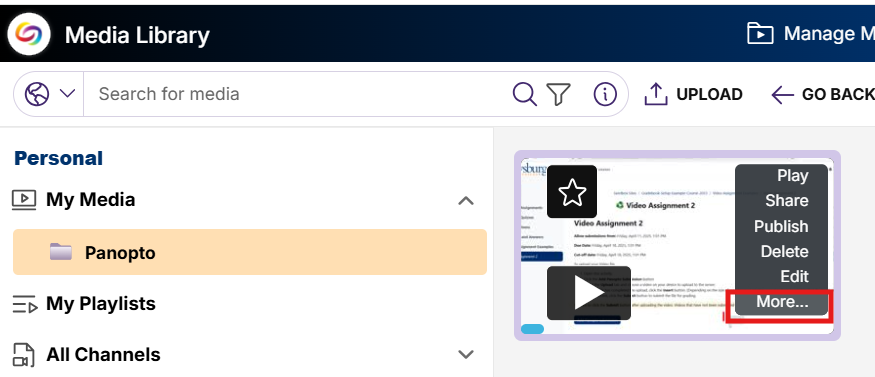
- Hover over the video thumbnail and click the More button from the list of options that appear.
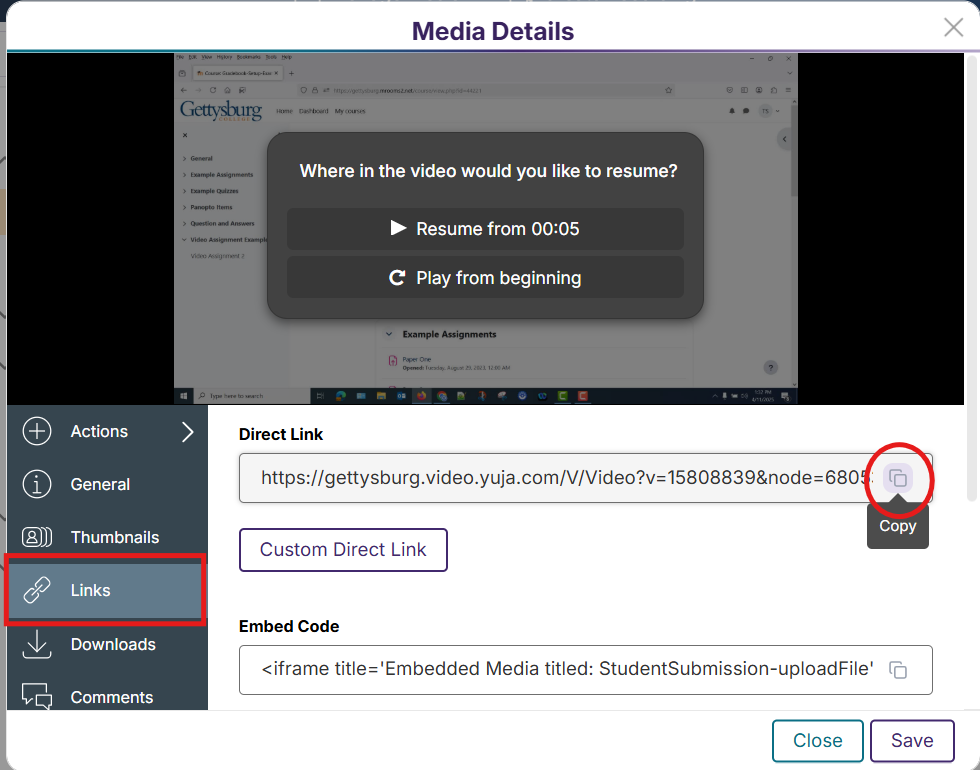
- In the Media Details window that appears, click the Links option from the left side menu.
- Click the Copy icon on the right end of the Direct Link box.
- Paste the link into Moodle, a webpage, email, or other location.
- Click the Close button to close the YuJa Media Details window.
Copying a YuJa Link into a Moodle URL
- Log into Moodle and open a course.
- Turn editing on by sliding the Edit Mode toggle to the on position.
- Find the location in the course where you wish to add the link and click the Add content button (the “+” sign located at the bottom of each section) and choose Activity or resource.
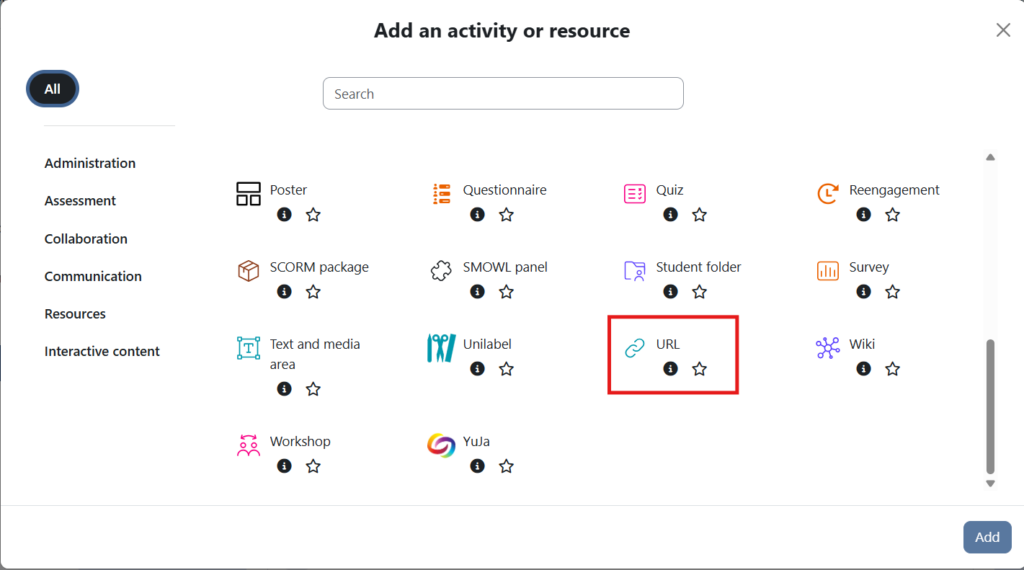
- Click either the All or Resources options from the right menu and select the URL resource.
- Click the Add button.
- Enter a Name for the link.
- In the External URL field, paste the YuJa copied link (See the earlier section, Copying the Video Link in YuJa, for more details about copying a video’s link in YuJa .

- Click the Save and return to course button.
